Return to All Articles
Article Sections
1. Getting Started
2. Leads
3. Library
4. Sales Template
5. Estimate
6. Proposal
7. Invoice
8. Change Order
9. Organization Management
10. Team Management
Send a Draft Proposal
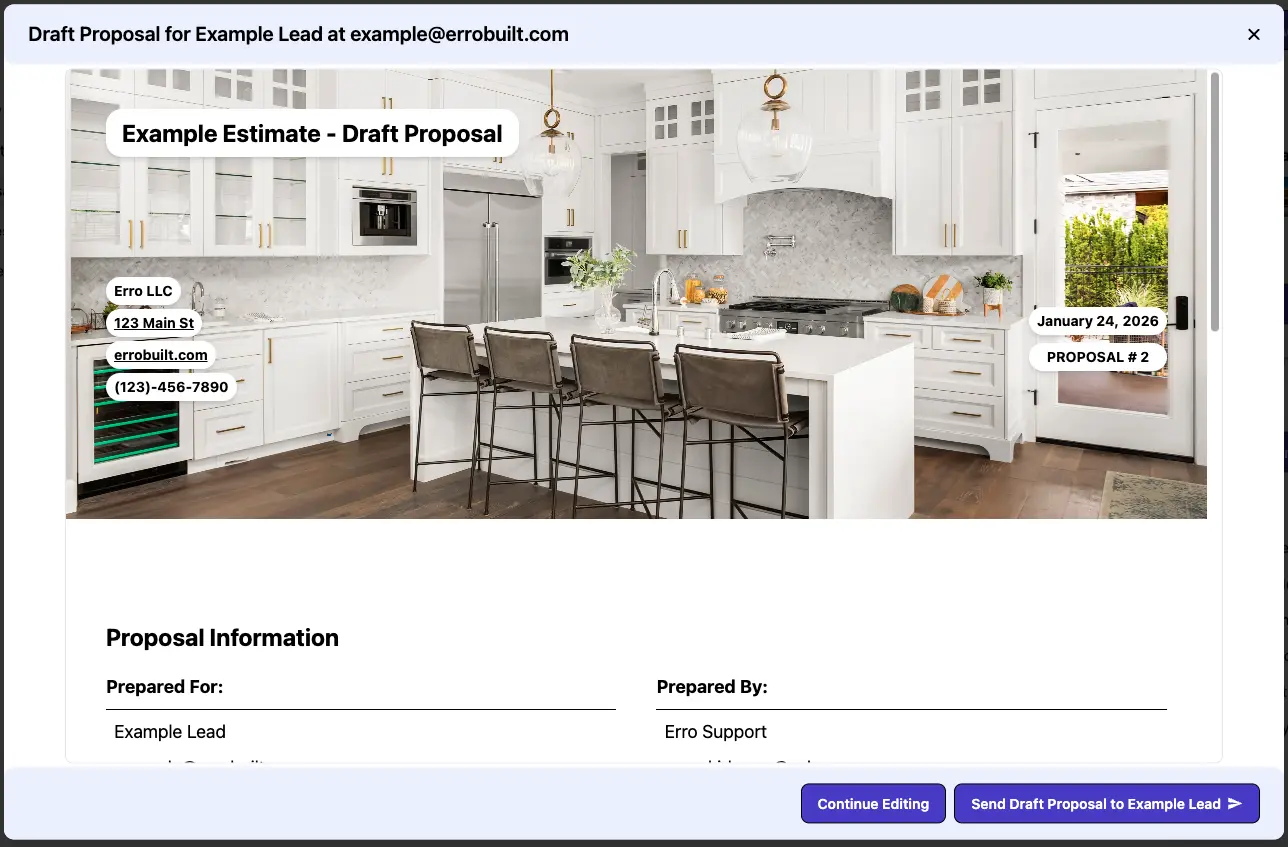
Learn how to send a draft proposal step-by-step. Draft Proposals are preliminary versions of proposals that can be reviewed and edited before sending the final version. These versions do not have a signature or acceptance functionality.
By Erro Support | 01/25/2026
1 min read
Proposal
1. Select Proposal to Send as Draft
Start by navigating to the proposals section and select the 'Draft Proposals' tab. Then choose the proposal you wish to send as a draft. Click on the draft proposal's name to open its details page.

2. Send the Draft Proposal
From the Draft Proposal page, click the 'Send Draft Proposal' button. This will generate a preview popup of the proposal. Review the preview and confirm to send the draft proposal to the intended recipient.
Other Proposal Articles
Explore more articles to help you get the most out of Erro.
Create a Proposal
Step-by-step guide to creating a proposal.
Proposal
5 min read
1/25/2026

Erro Support
Create a Proposal Template
Step-by-step guide to creating a proposal template.
Proposal
2 min read
1/25/2026
Erro Support
Edit a Proposal Template
Step-by-step guide to editing a proposal template.
Proposal
5 min read
1/25/2026
Erro Support
Send a Proposal
Step-by-step guide to sending a proposal.
Proposal
2 min read
1/25/2026
Erro Support
Sign a Proposal
Step-by-step guide to signing a proposal.
Proposal
2 min read
1/25/2026
Erro Support