Return to All Articles
Article Sections
1. Getting Started
2. Leads
3. Library
4. Sales Template
5. Estimate
6. Proposal
7. Invoice
8. Change Order
9. Organization Management
10. Team Management
Edit a Proposal Template
Learn how to edit a proposal template step-by-step.
By Erro Support | 01/25/2026
1. Select Template to Edit
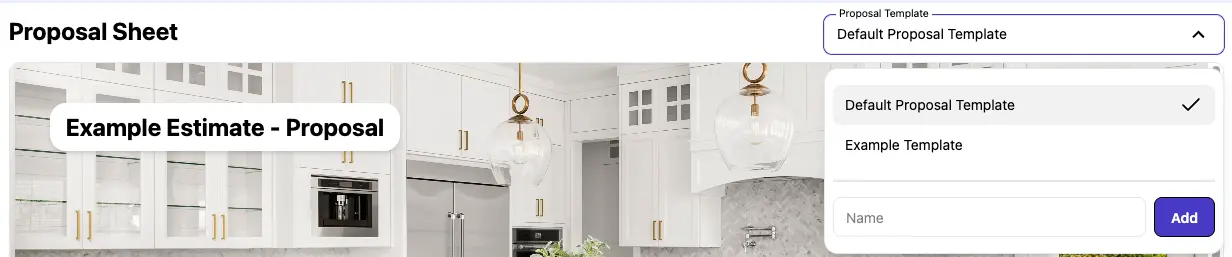
Start by navigating to the proposals section and selecting the Templates tab. Then choose the template you wish to edit from the template selector in the top right.
2. Change Template Name
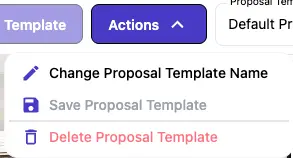
Use the 'Actions' button in the top right corner to rename your template. Click 'Change Proposal Template Name', enter the new name in the popup, and click 'Confirm' to save the changes.
3. Change Template Cover Image
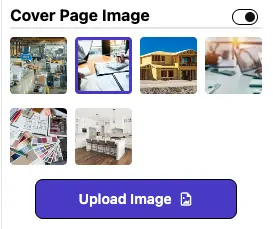
Using the editing bar on the right, you can edit the cover page image to best represent your business. You can use one of the default images or upload your own. Or turn it off entirely using the switch.
4. Enable or Disable Table of Contents
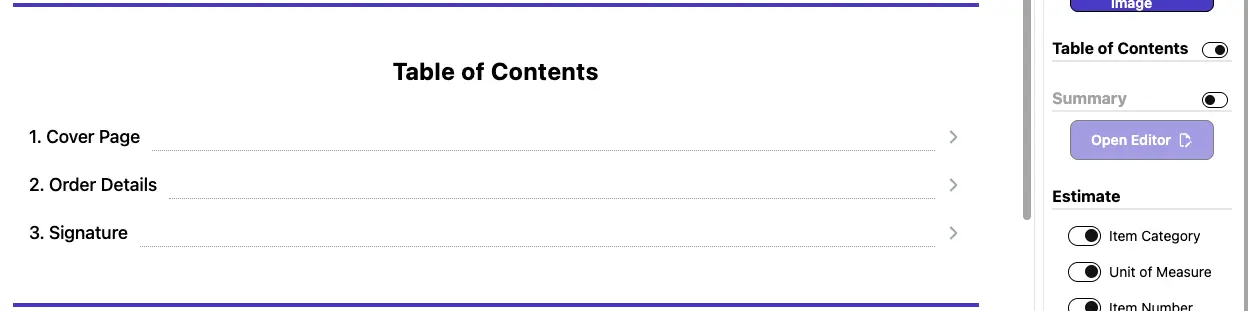
Using the switch next to the 'Table of Contents' label, you can enable or disable the table of contents in your proposal template.
5. Choose a Summary
Using the switch next to the 'Summary' label, you can enable or disable the summary in your proposal template. If you enable it, you can fill in what the summary will say using the 'Open Editor' button. This summary you write in the template will be the default summary for any proposals created with this template.

6. Modify the Estimate Information
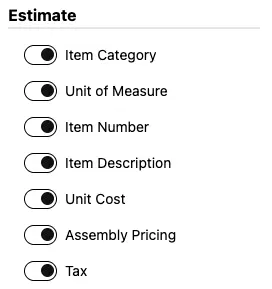
Every Proposal will show the information for the estimate that it is being created for. In the 'Estimate' section of the editor, you can choose what information from the estimate that it will display.
7. Add Attatchments
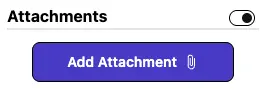
Use the 'Attatchments' section to add attachments such as PDFs, images, or other relevant documents to your proposal. These attatchments will be the default attachments for any proposals created with this template.
8. Add Legal Information
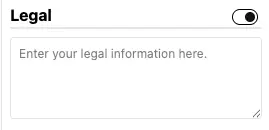
Use the 'Legal Information' section to add legal terms and conditions to your proposal. This information will be the default legal terms for any proposals created with this template.
9. Save Your Changes
Ensure you click the 'Save Template' button in the top right corner to apply your changes.

Other Proposal Articles
Explore more articles to help you get the most out of Erro.
Create a Proposal
Step-by-step guide to creating a proposal.

Erro Support
Create a Proposal Template
Step-by-step guide to creating a proposal template.
Erro Support
Send a Draft Proposal
Step-by-step guide to sending a draft proposal.
Erro Support
Send a Proposal
Step-by-step guide to sending a proposal.
Erro Support
Sign a Proposal
Step-by-step guide to signing a proposal.
Erro Support