Return to All Articles
Article Sections
1. Getting Started
2. Leads
3. Library
4. Sales Template
5. Estimate
6. Proposal
7. Invoice
8. Change Order
9. Organization Management
10. Team Management
Sign a Proposal
Learn how to sign a proposal step-by-step. Signing a proposal indicates a client's acceptance of the terms and conditions outlined within it.
By Erro Support | 01/25/2026
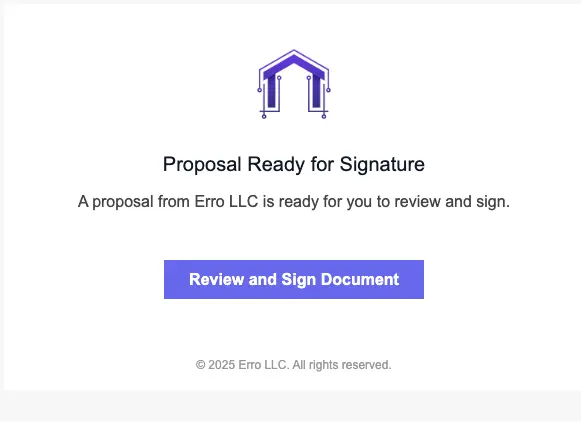
1. Find the Proposal Email
Once a proposal is sent to the client, it. will appear in the inbox of the email associated with the lead for that client.
2. View the Proposal
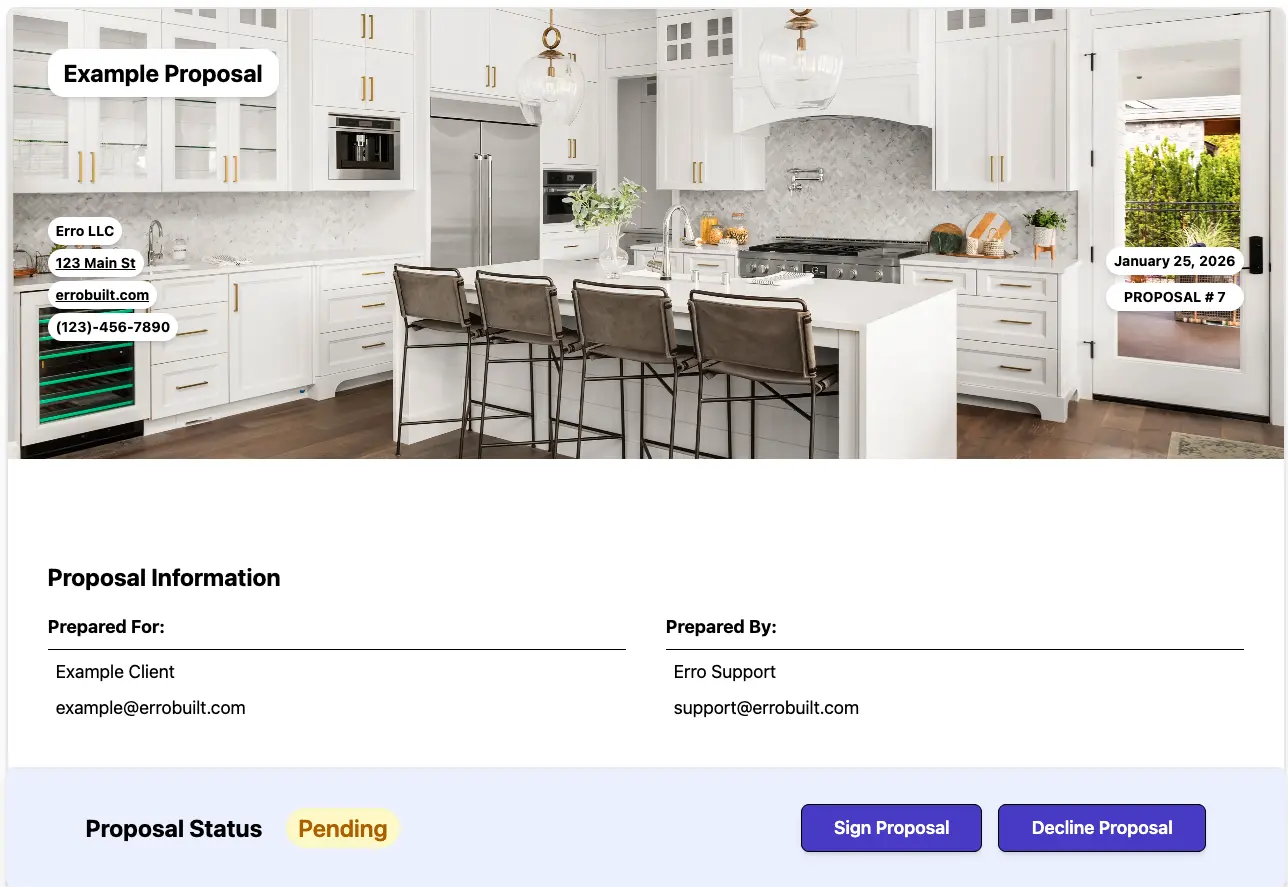
Click the 'Review and Sign Document' button in the email to open the proposal. Review all information presented in the proposal to ensure accuracy and completeness. When ready to sign, click the 'Sign Proposal' button at the bottom of the proposal.
3. Sign the Proposal
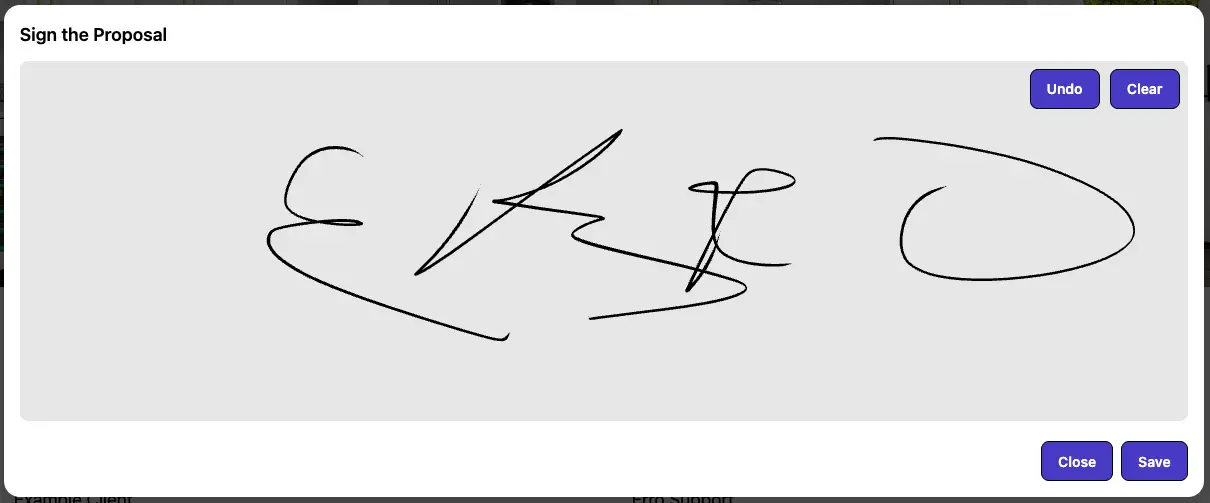
Use your mouse or touchscreen to sign the proposal in the designated area. When satisfied with your signature, click 'Save' to finalize the signing process.
4. Proposal is Complete!
The proposal has been successfully signed and is now complete. This will update the proposal you view through the email and the sender will be notified and can begin the next steps.

Other Proposal Articles
Explore more articles to help you get the most out of Erro.
Create a Proposal
Step-by-step guide to creating a proposal.

Erro Support
Create a Proposal Template
Step-by-step guide to creating a proposal template.
Erro Support
Edit a Proposal Template
Step-by-step guide to editing a proposal template.
Erro Support
Send a Draft Proposal
Step-by-step guide to sending a draft proposal.
Erro Support
Send a Proposal
Step-by-step guide to sending a proposal.
Erro Support