Return to All Articles
Article Sections
1. Getting Started
2. Leads
3. Library
4. Sales Template
5. Estimate
6. Proposal
7. Invoice
8. Change Order
9. Organization Management
10. Team Management
Embed Your Lead Form
Learn how to embed your lead form into your website or share it with potential clients.
By Erro Support | 01/25/2026
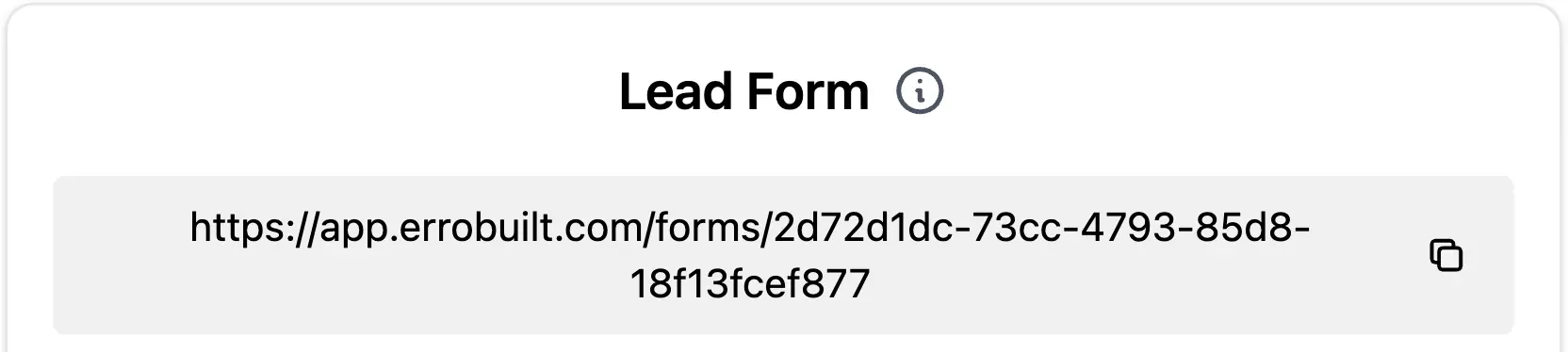
1. Copy Lead Form URL
Start by going to the leads page, switching to the 'Outreach' tab, and clicking url to copy the lead form link. This is the URL you will use to share your lead form or embed it on your website.
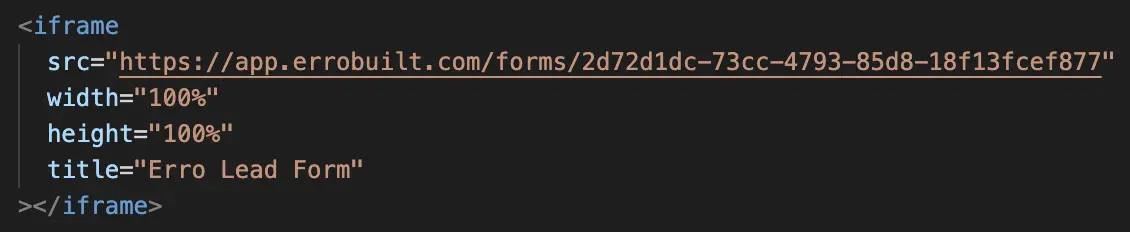
2. Add Your URL to the Following Code Snippet
<iframe src="YOUR_LEAD_FORM_URL_HERE" width="100%" height="100%" title="Erro Lead Form" ></iframe>
3. Embed to Your Website
Here are links to common website providers' instructions for embedding an iframe:
For other platforms, copy the lead form link and use it in an HTML iframe to embed the form on your website.4. Verify Your Embedded Form
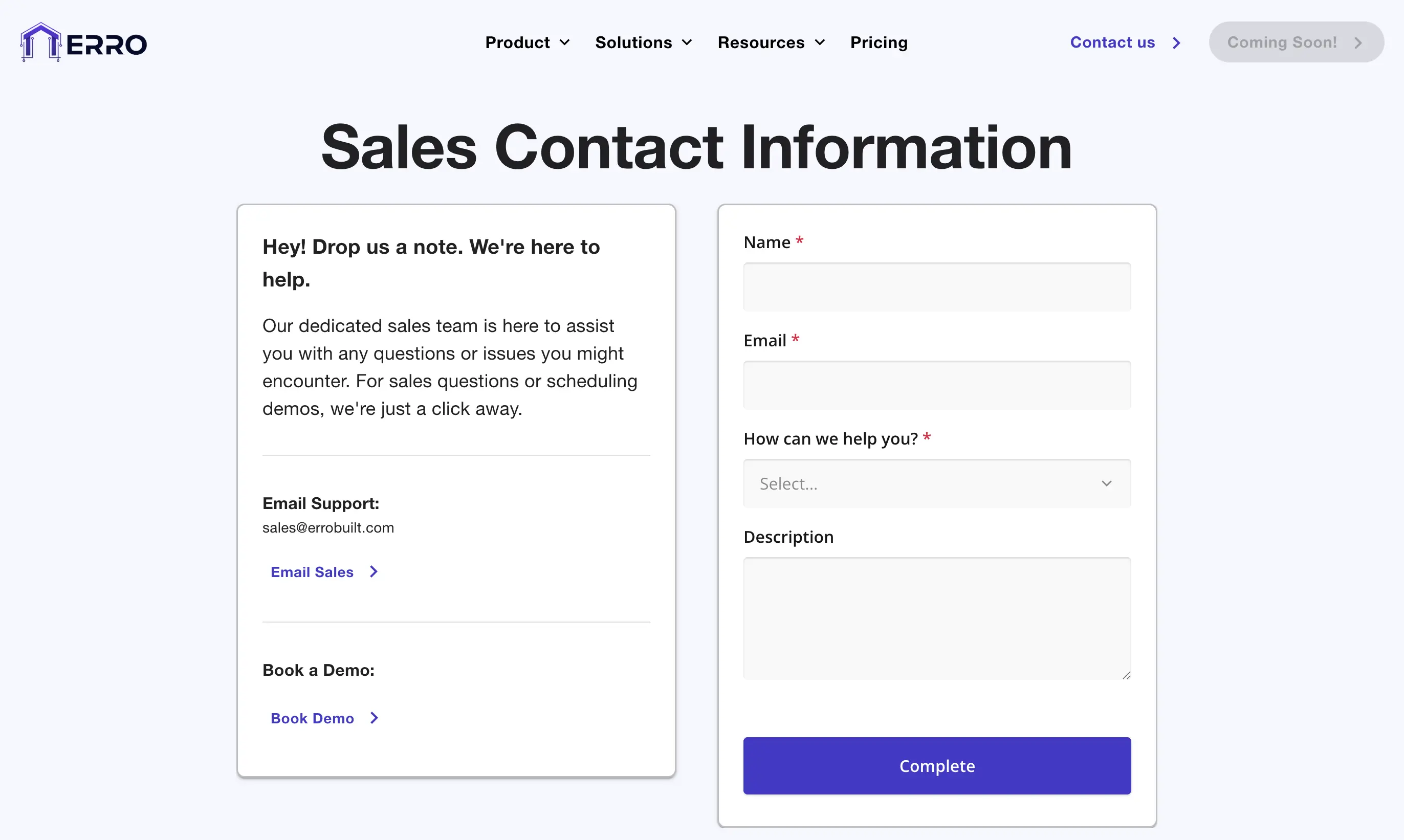
After embedding the form on your website, visit the page where you embedded it to ensure it displays correctly. You should see your lead form fully functional and ready for potential clients to fill out.
Other Leads Articles
Explore more articles to help you get the most out of Erro.
Add a Tag or Stage to a Lead
Learn how to add a tag or stage to a lead.

Erro Support
Create an Email Template
Learn how to create an email template.
Erro Support
Create an Email Campaign
Learn how to create an email campaign.
Erro Support
Edit Your Lead Form
Learn how to customize and edit your lead form.
Erro Support