Return to All Articles
Article Sections
1. Getting Started
2. Leads
3. Library
4. Sales Template
5. Estimate
6. Proposal
7. Invoice
8. Change Order
9. Organization Management
10. Team Management
Record a Payment
Learn how to record a payment on an invoice step-by-step. You can keep track of payments made by your clients to ensure accurate financial records.
By Erro Support | 01/25/2026
1. Select Invoice to Record Payment
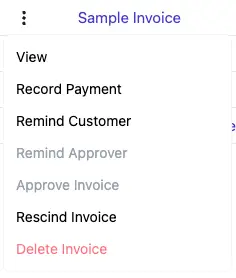
Start by navigating to the invoices section to see all your created invoices. To record a payment, click the three dots next to the invoice you want to update. Then select 'Record Payment' from the dropdown menu.
2. The Payment Tracker
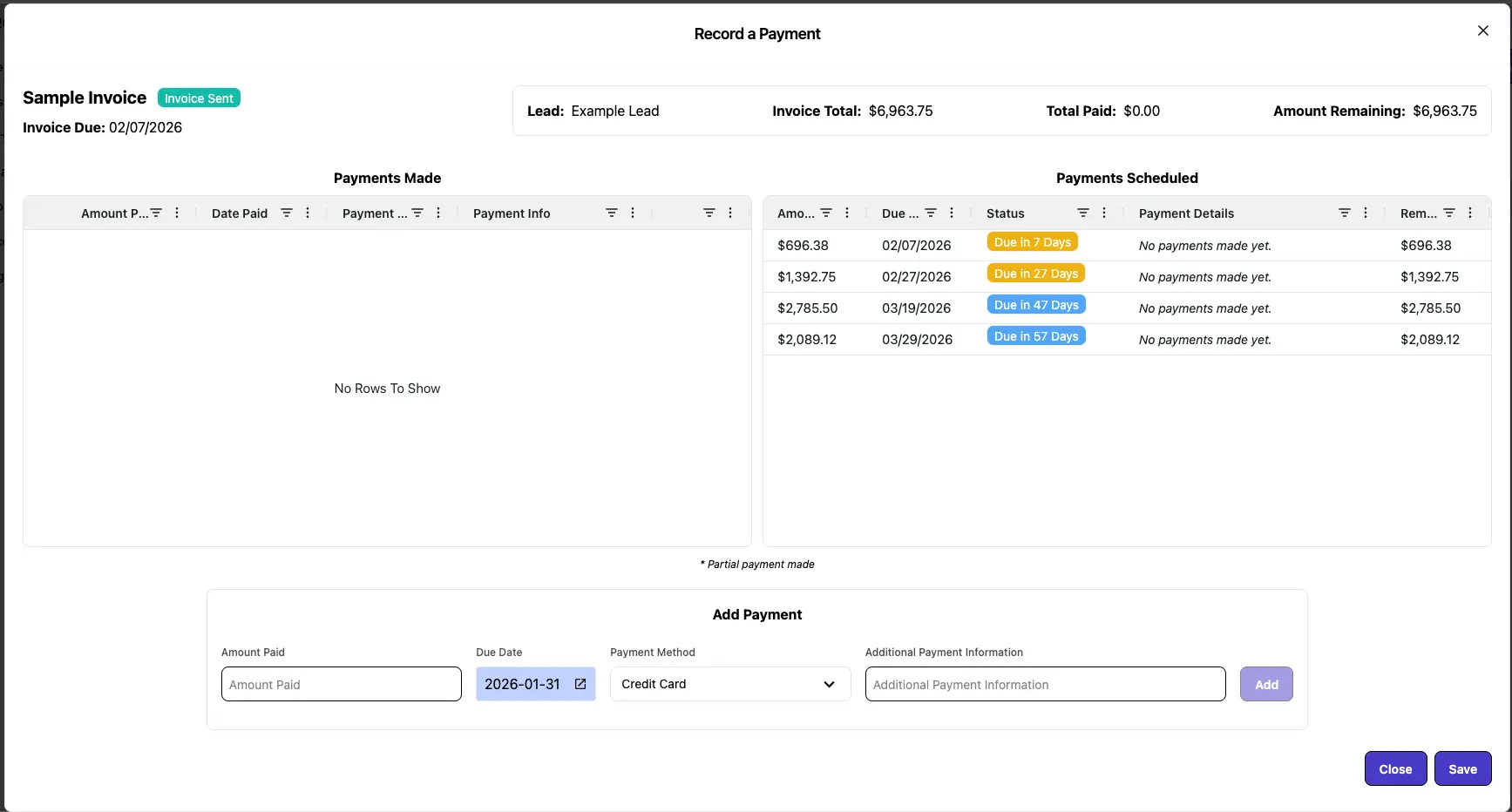
The Payment Tracker allows you to view and manage all payments recorded for an invoice, ensuring you have an accurate overview of your financial transactions.
3. Record a New Payment
To record a new payment, enter the amount into the 'Amount Paid' field and then select the date and payment method. Add any relevant notes about the payment in the 'Additional Payment Information' section. When finished, click the 'Add' button to save the payment to the invoice.

4. View Updated Invoice
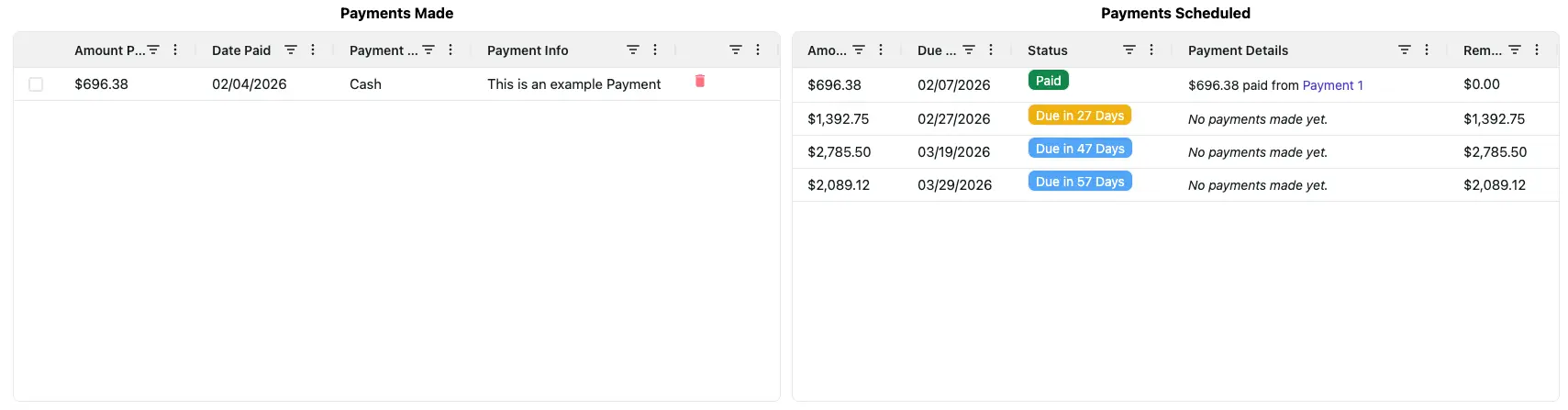
After recording a payment, the Payment Tracker will automatically update the invoice to reflect the new payment. The Payment will be added to the 'Payments Made' section on the right, and the 'Payments Scheduled' section will adjust accordingly.
5. Delete a Payment
If you need to delete a payment, navigate to the Payment Tracker and find the payment you want to remove. Click the delete icon next to the payment entry to remove it from the invoice. The tracker will automatically update to reflect the change.

6. Partial Payments
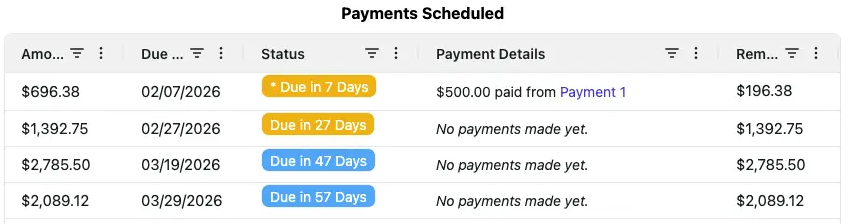
If a partial payment is made, record the amount paid as a new payment, the Payment Tracker will update the remaining balance accordingly. It will show the amount paid toward which payments on the right 'Payments Scheduled' section. It will also show the remaining amount due for a payment plan.
Other Invoice Articles
Explore more articles to help you get the most out of Erro.
Create an Invoice
Step-by-step guide to creating an invoice.

Erro Support
Edit an Invoice
Step-by-step guide to editing an invoice.
Erro Support
Create a Payment Schedule
Step-by-step guide for creating a payment schedule.
Erro Support
Send an Invoice
Step-by-step guide for sending an invoice.
Erro Support