Return to All Articles
Article Sections
1. Getting Started
2. Leads
3. Library
4. Sales Template
5. Estimate
6. Proposal
7. Invoice
8. Change Order
9. Organization Management
10. Team Management
Update Organization Details/Branding
Personalize your Erro Organization by adding your own branding and details.
By Erro Support | 01/25/2026
1. Intro
Within the Erro application, you can personalize your organization by updating its details and branding to reflect your company's identity. This will reflect across the entire application for all members of the organization to see. Follow the steps below to update your organization's details and branding.
2. Open Organization Settings
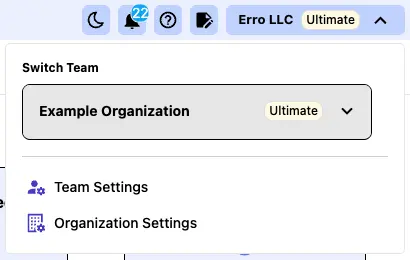
From any page within the Erro app, click on the organization name that you are currently viewing in the top left corner. This will open a dropdown menu where you can select 'Organization Settings' to view organization settings.
3. Click the 'Branding' Tab
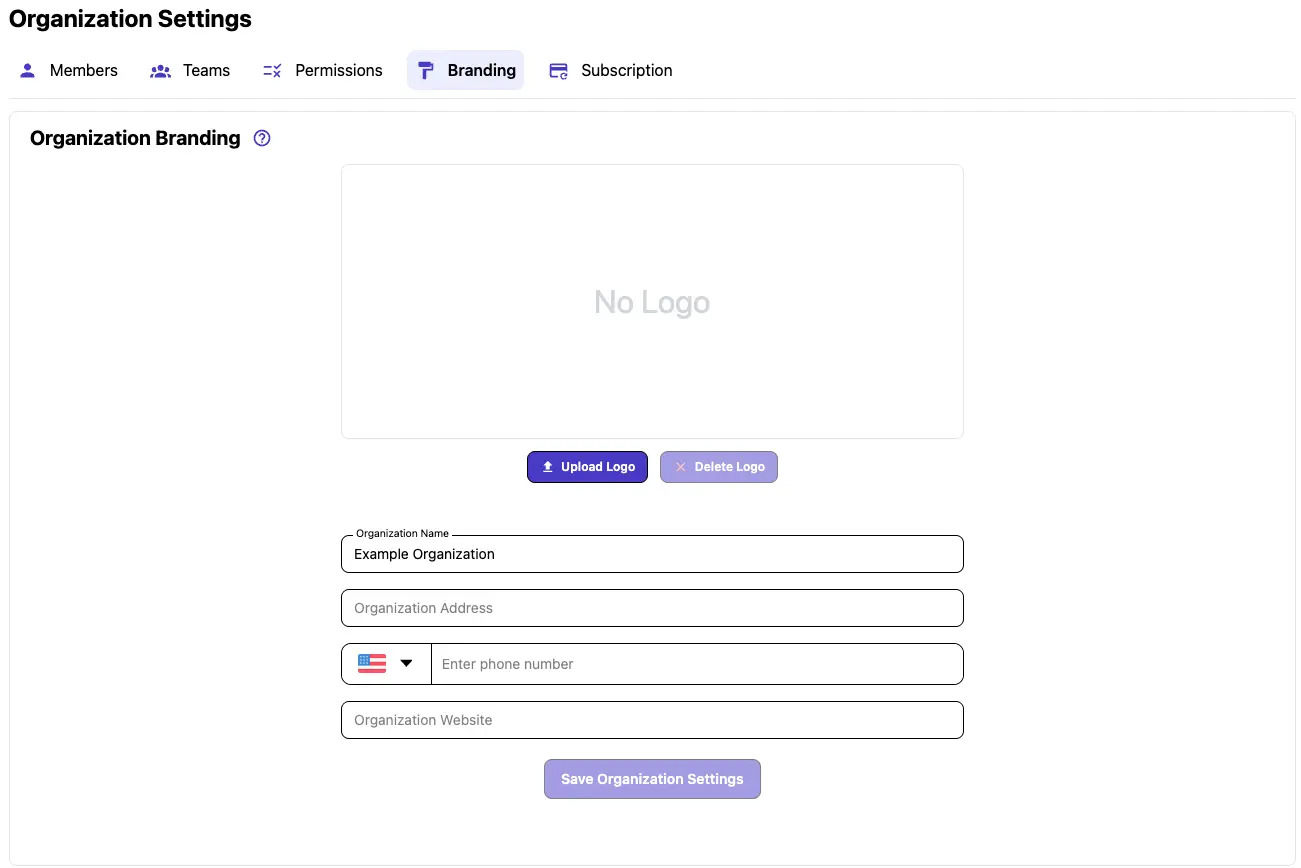
Click on the 'Branding' tab within the Organization Settings to access branding options.
4. Upload an Organization Logo
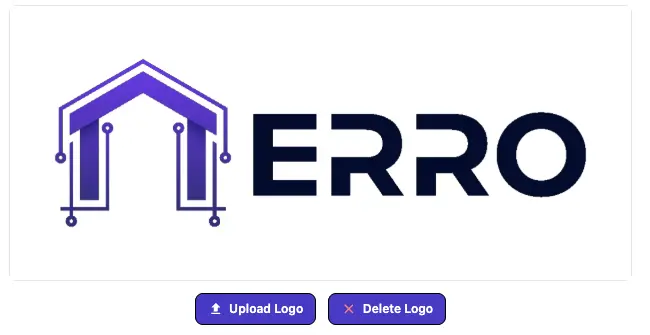
To add your own logo or business image to the organization, click the 'Upload Logo' button and select an image file from your device. This will automatically update the logo across the entire application.
5. Update Organization Details
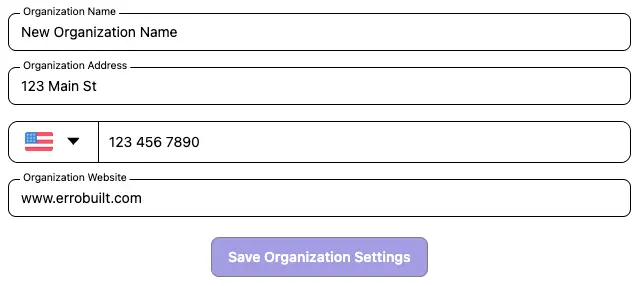
Fill in all of the details you want to add in the details section. Then click 'Save Organization Settings' to save your changes.
Other Organization Management Articles
Explore more articles to help you get the most out of Erro.
Organization Overview
What is an organization.

Erro Support
Manage Organization Members
Step-by-step guide to viewing/inviting/removing organization members.
Erro Support
Manage Your Erro Subscription
Update your subscription to Erro including plan details and billing information.
Erro Support
Manage Organization Permissions
Manage roles and permissions for users within your organization to control access and capabilities.
Erro Support