Return to All Articles
Article Sections
1. Getting Started
2. Leads
3. Library
4. Sales Template
5. Estimate
6. Proposal
7. Invoice
8. Change Order
9. Organization Management
10. Team Management
Add a Tag or Stage to a Lead
Learn how to add a tag or stage to a lead.
By Erro Support | 01/25/2026
1. Create a Tag
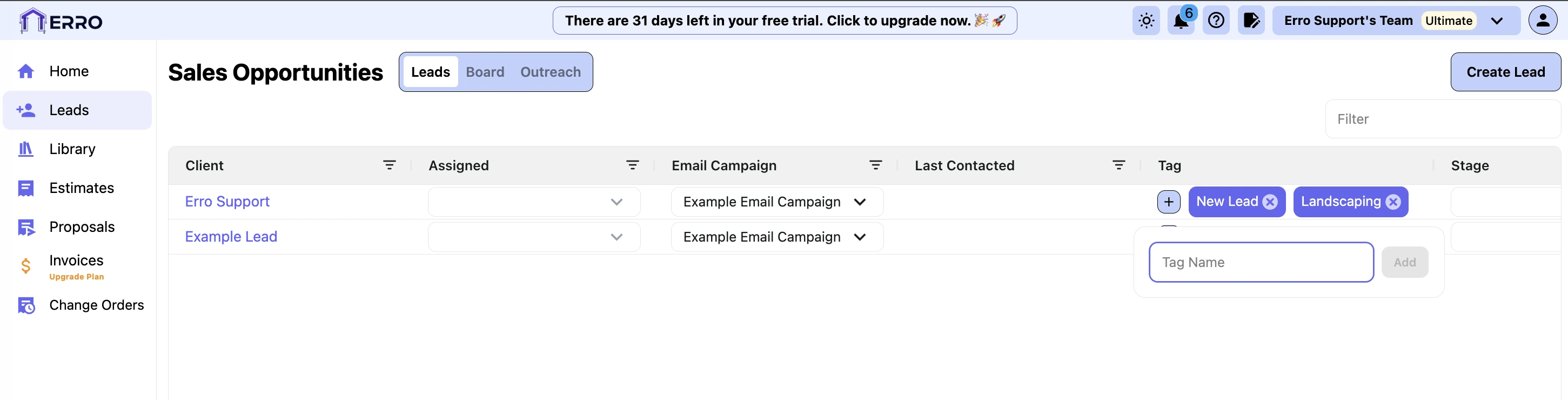
Start by scrolling to the right and clicking the '+' under 'Tag'. Type in the name of the tag you want to add and click add.
2. Create a Stage
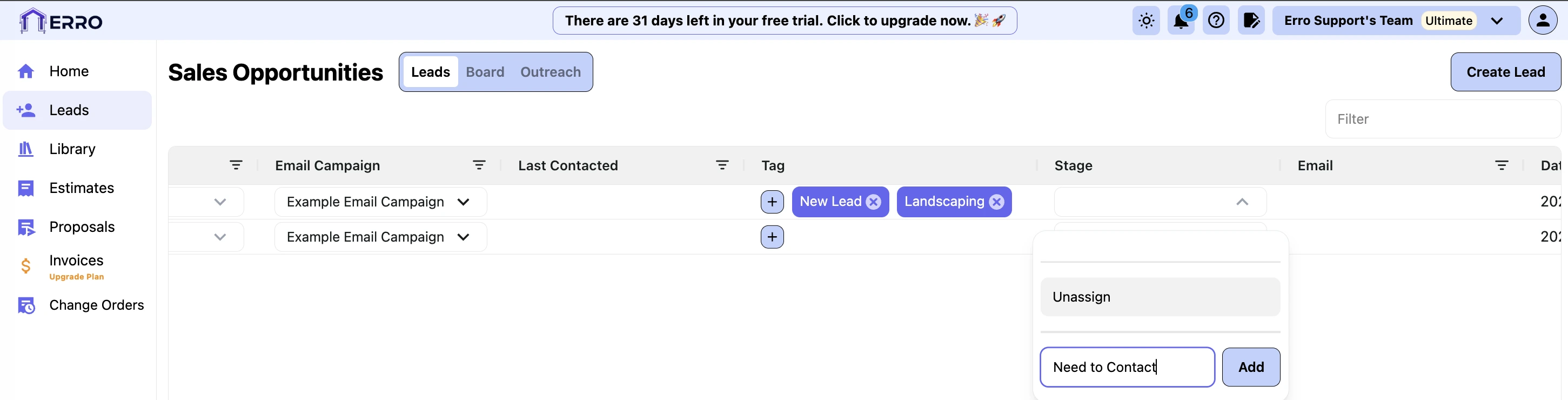
Next, scroll to the right and click the drop down under 'Stage'. Type in the name of the stage you want to add and click add.
3. View Stages on a Board
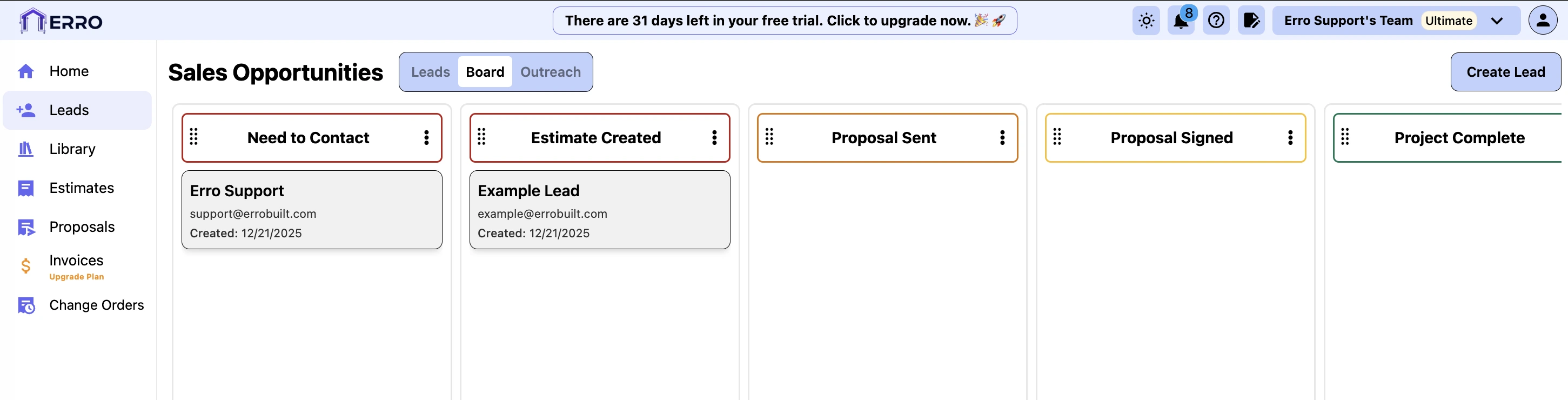
After saving your changes, click the 'Board' tab and see all of your stages. In this view you can drag and drop leads between stages as well as rearrange the order of stages.
4. Assign a Color to a Stage
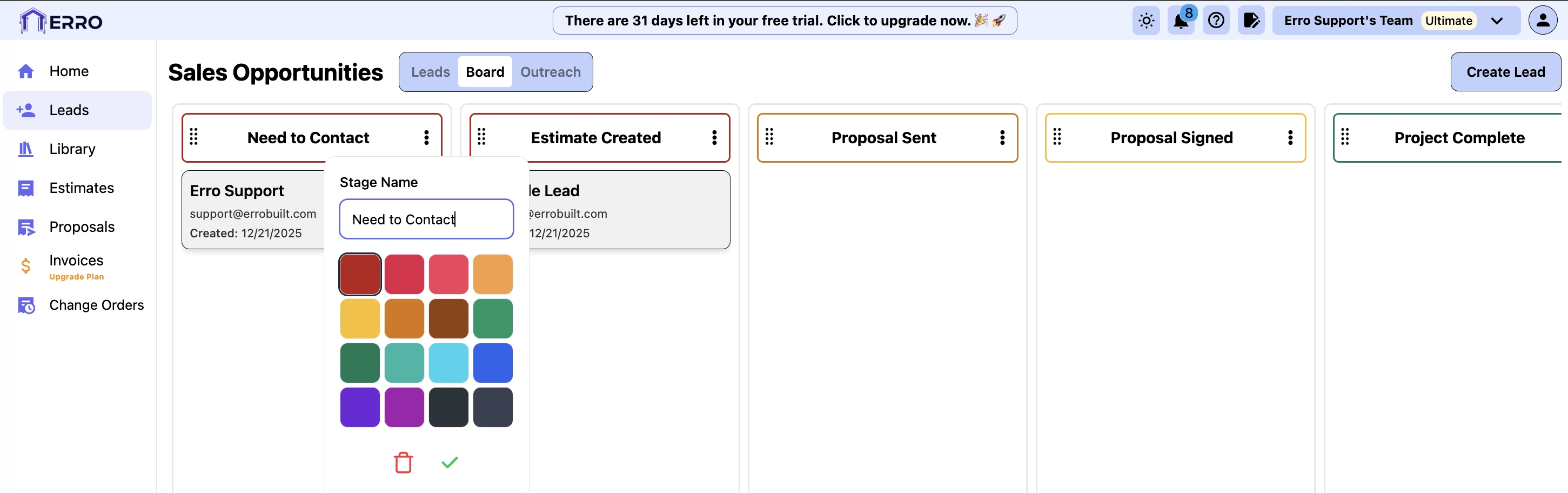
Click the three dots next to a stage name to assign a color to that stage for better visual organization.
Other Leads Articles
Explore more articles to help you get the most out of Erro.
Create an Email Template
Learn how to create an email template.

Erro Support
Create an Email Campaign
Learn how to create an email campaign.
Erro Support
Edit Your Lead Form
Learn how to customize and edit your lead form.
Erro Support
Embed Your Lead Form
Learn how to embed your lead form on your website.
Erro Support