Return to All Articles
Article Sections
1. Getting Started
2. Leads
3. Library
4. Sales Template
5. Estimate
6. Proposal
7. Invoice
8. Change Order
9. Organization Management
10. Team Management
Create a Proposal Template
Learn how to create a proposal template step-by-step.
By Erro Support | 01/25/2026
1. View Proposal Templates
Start by navigating to the proposals section and selecting the Template tab.

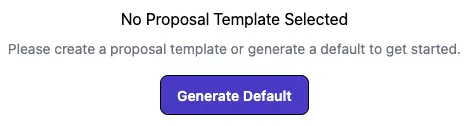
2. Generate Default Template
If you have no templates, you can generate a default template to get started. The default template includes standard sections and formatting to help you get started quickly. If you prefer to create a custom template from scratch, you can skip this step.
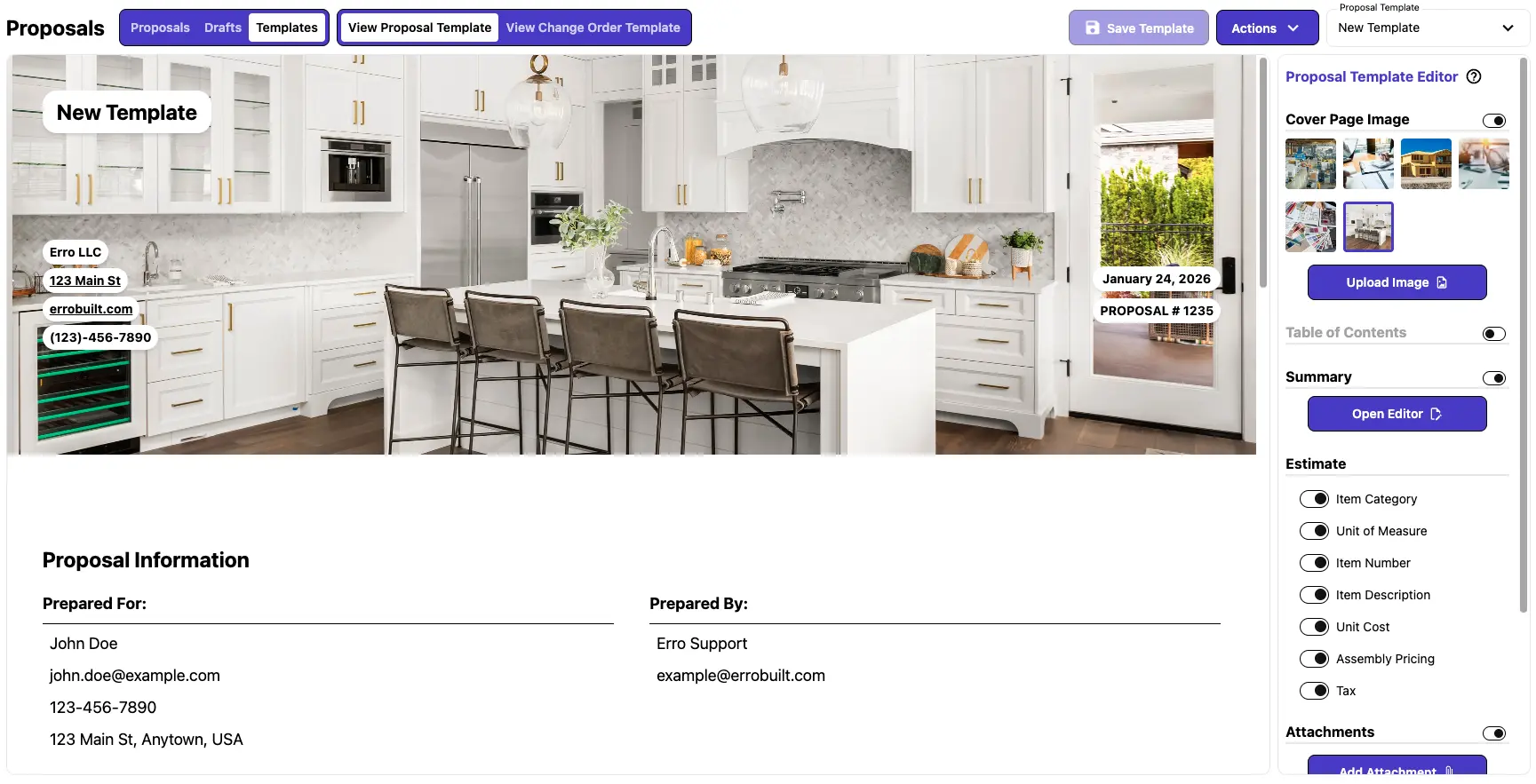
3. Edit Your New Template
Now that you have either a custom or default template, you can modify its features to suit the needs of your business. Using the editor on the right side, you can enable or disable different sections such as: Cover Page Images, Table of Contents, Summary, and various options for displaying line items. Customize the template to match your branding and the type of proposals you typically send.
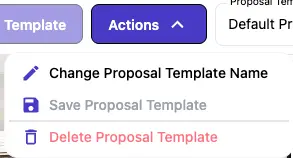
4. Delete a Template
If you wish to delete a template, use the action button in the top right corner then select 'Delete Proposal Tempalate'. Confirm the deletion in the popup to permanently remove the template from your account.
Other Proposal Articles
Explore more articles to help you get the most out of Erro.
Create a Proposal
Step-by-step guide to creating a proposal.

Erro Support
Edit a Proposal Template
Step-by-step guide to editing a proposal template.
Erro Support
Send a Draft Proposal
Step-by-step guide to sending a draft proposal.
Erro Support
Send a Proposal
Step-by-step guide to sending a proposal.
Erro Support
Sign a Proposal
Step-by-step guide to signing a proposal.
Erro Support