Return to All Articles
Article Sections
1. Getting Started
2. Leads
3. Library
4. Sales Template
5. Estimate
6. Proposal
7. Invoice
8. Change Order
9. Organization Management
10. Team Management
Calculate Tax for Library Items
Learn how to set and calculate tax for your library items step-by-step.
By Erro Support | 01/25/2026
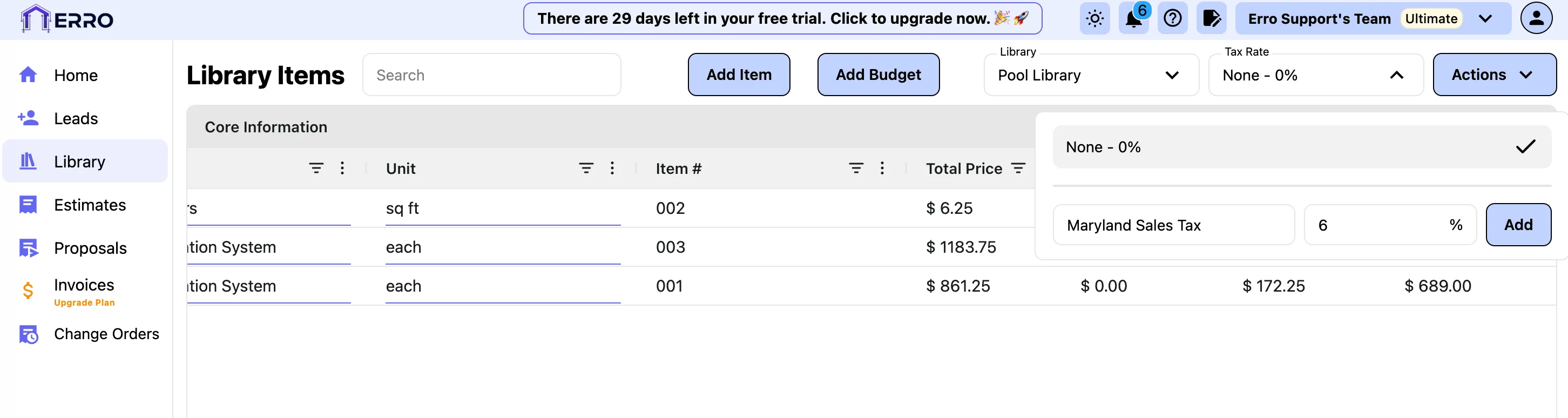
1. Create a Tax Rate
Click the tax rate drop down and add a name and percentage for a new tax rate. Applying a tax rate will apply it to every item in the library.
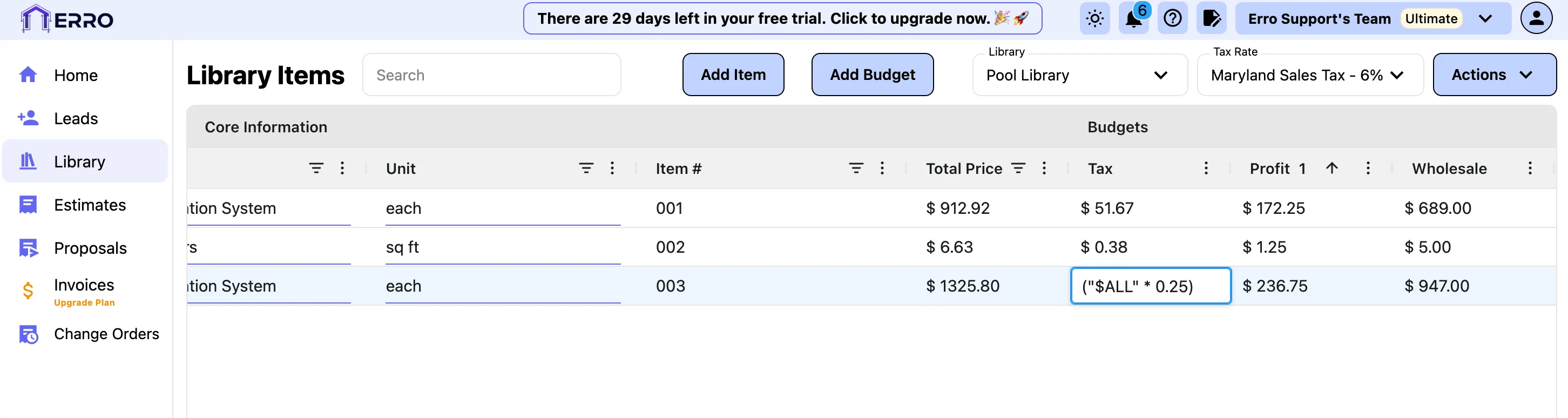
2. Update Tax for a Single Item
If you need to override the tax amount for a specific item double-click the tax field and update the formula to a decimal value representing the desired tax. Example: To apply a 25% tax, change the formula shown from ("$ALL" * "$TAX") to ("$ALL" * 0.25). The final pricing will automatically update based on the tax you set.
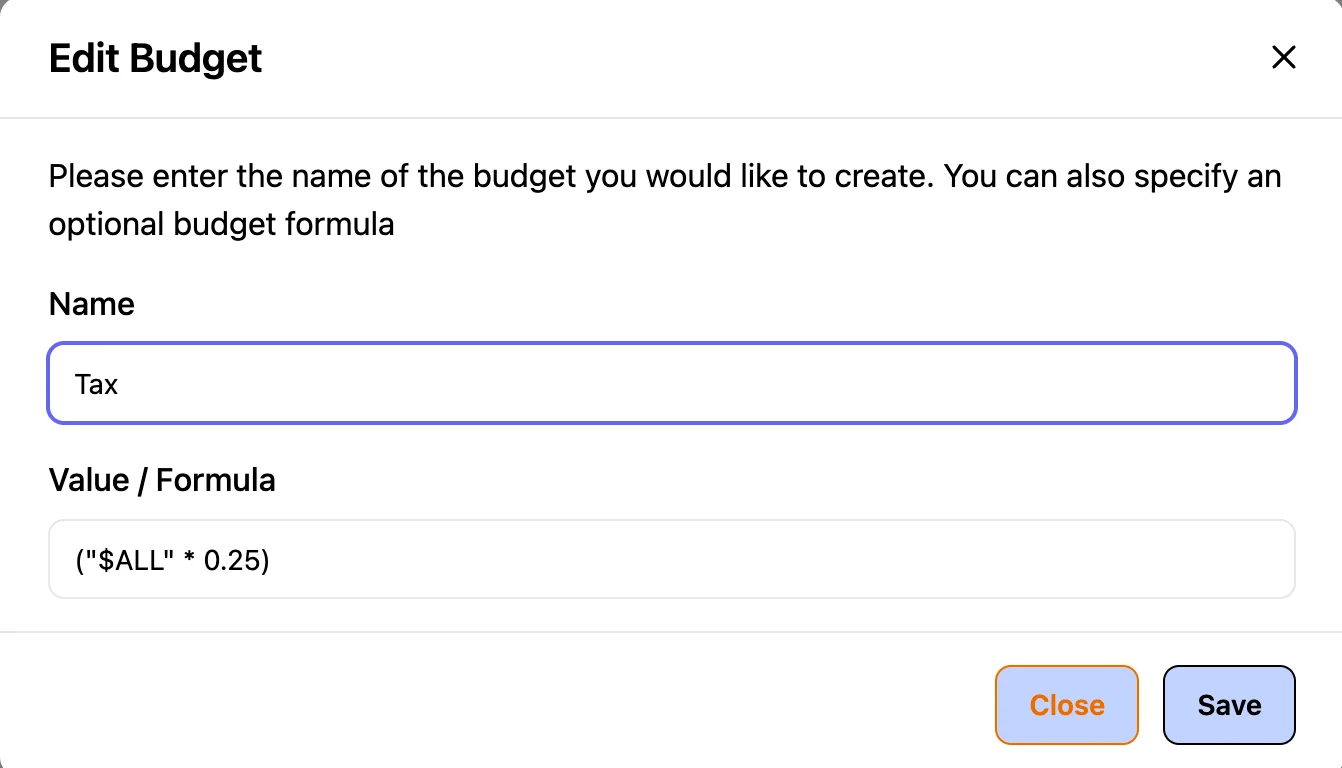
3. Update Tax for Every Item
To override the tax amount for all items that have not been individually overridden, click the three dots next to the Tax column and select Edit. Updating the formula here applies the change to all items in the column. Example: To apply a 25% tax, change the formula shown from ("$ALL" * "$TAX") to ("$ALL" * 0.25). The final pricing will automatically update based on the tax you set.
Other Library Articles
Explore more articles to help you get the most out of Erro.
Create a Library
Create and manage your product library.

Erro Support
Create a Budget
Create a budget for your library items.
Erro Support
Calculate Profit for Library Items
Set and calculate profit margins for your library items.
Erro Support