Return to All Articles
Article Sections
1. Getting Started
2. Leads
3. Library
4. Sales Template
5. Estimate
6. Proposal
7. Invoice
8. Change Order
9. Organization Management
10. Team Management
Send an Invoice
Learn how to send an invoice step-by-step. You can make sure your invoice reaches your client promptly and securely.
By Erro Support | 01/25/2026
1 min read
Invoice
1. Select Invoice to Send
Start by navigating to the invoices section to see all your created invoices. To select an invoice, click on the name of the invoice you want to send.

2. Send the Invoice
Click the 'Send Invoice' button in the top right corner. This will generate a preview of the invoice. Confirm the details and click 'Send Invoice' to email it to your client.
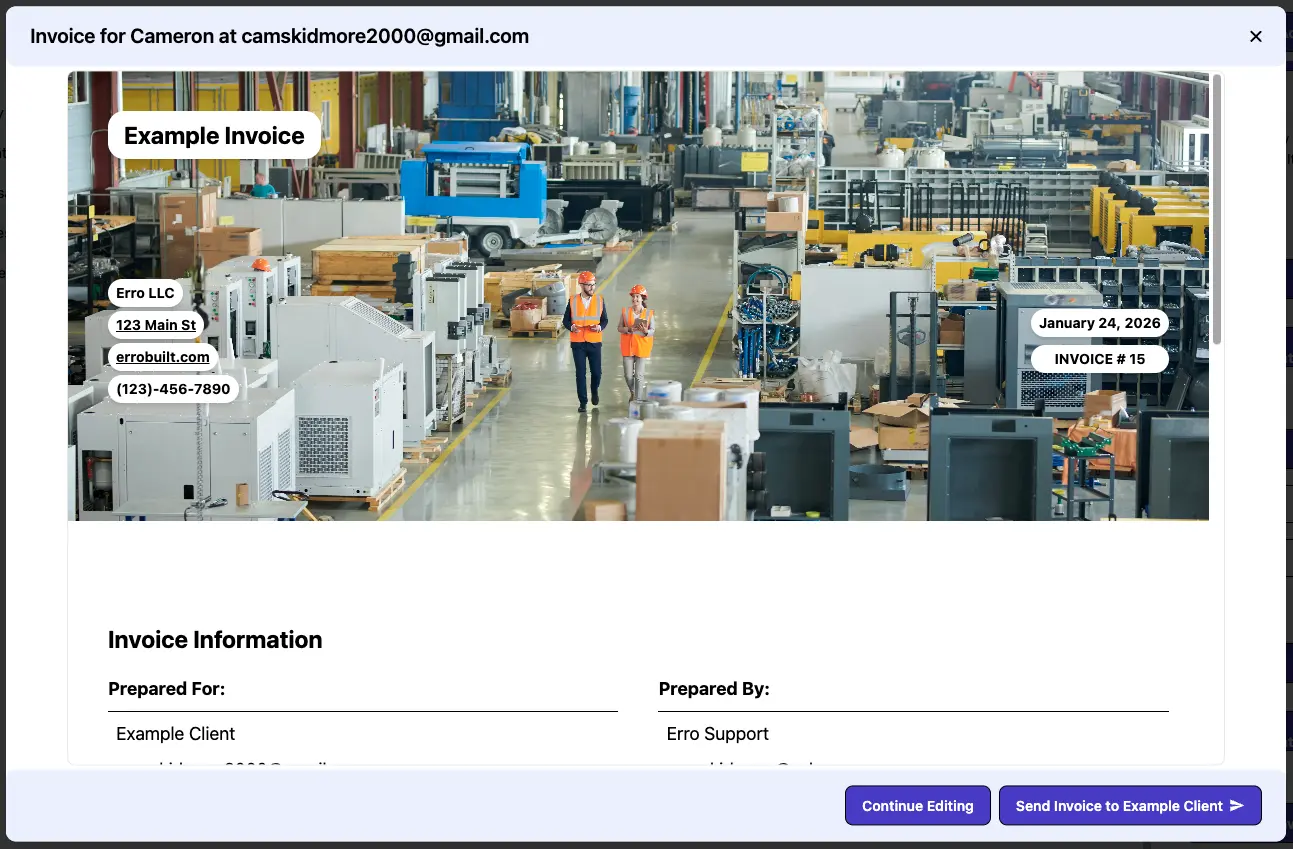
3. Invoice will be delivered
Client will be able to view the invoice directly from their email.
Other Invoice Articles
Explore more articles to help you get the most out of Erro.
Create an Invoice
Step-by-step guide to creating an invoice.
Invoice
2 min read
1/25/2026

Erro Support
Edit an Invoice
Step-by-step guide to editing an invoice.
Invoice
5 min read
1/25/2026
Erro Support
Create a Payment Schedule
Step-by-step guide for creating a payment schedule.
Invoice
5 min read
1/25/2026
Erro Support
Record a Payment
Step-by-step guide for recording a payment.
Invoice
5 min read
1/25/2026
Erro Support