Return to All Articles
Article Sections
1. Getting Started
2. Leads
3. Library
4. Sales Template
5. Estimate
6. Proposal
7. Invoice
8. Change Order
9. Organization Management
10. Team Management
Edit Your Lead Form
Learn how to customize and edit your lead form to better suit your business needs.
By Erro Support | 01/25/2026
1. Edit Lead Form
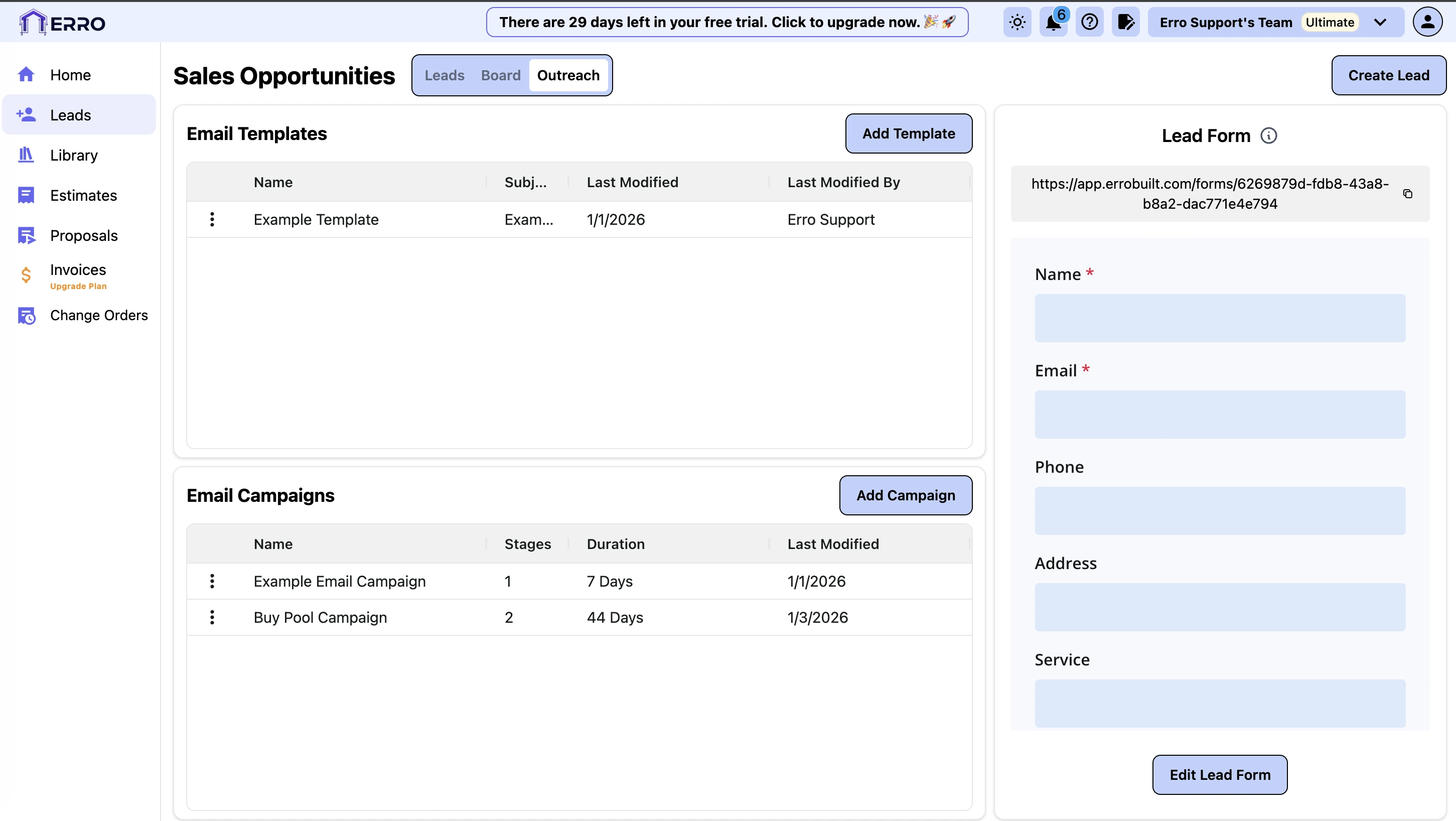
Start by going to the leads page, switching to the 'Outreach' tab, and clicking 'Edit Lead Form'.
2. Customize Lead Form Fields
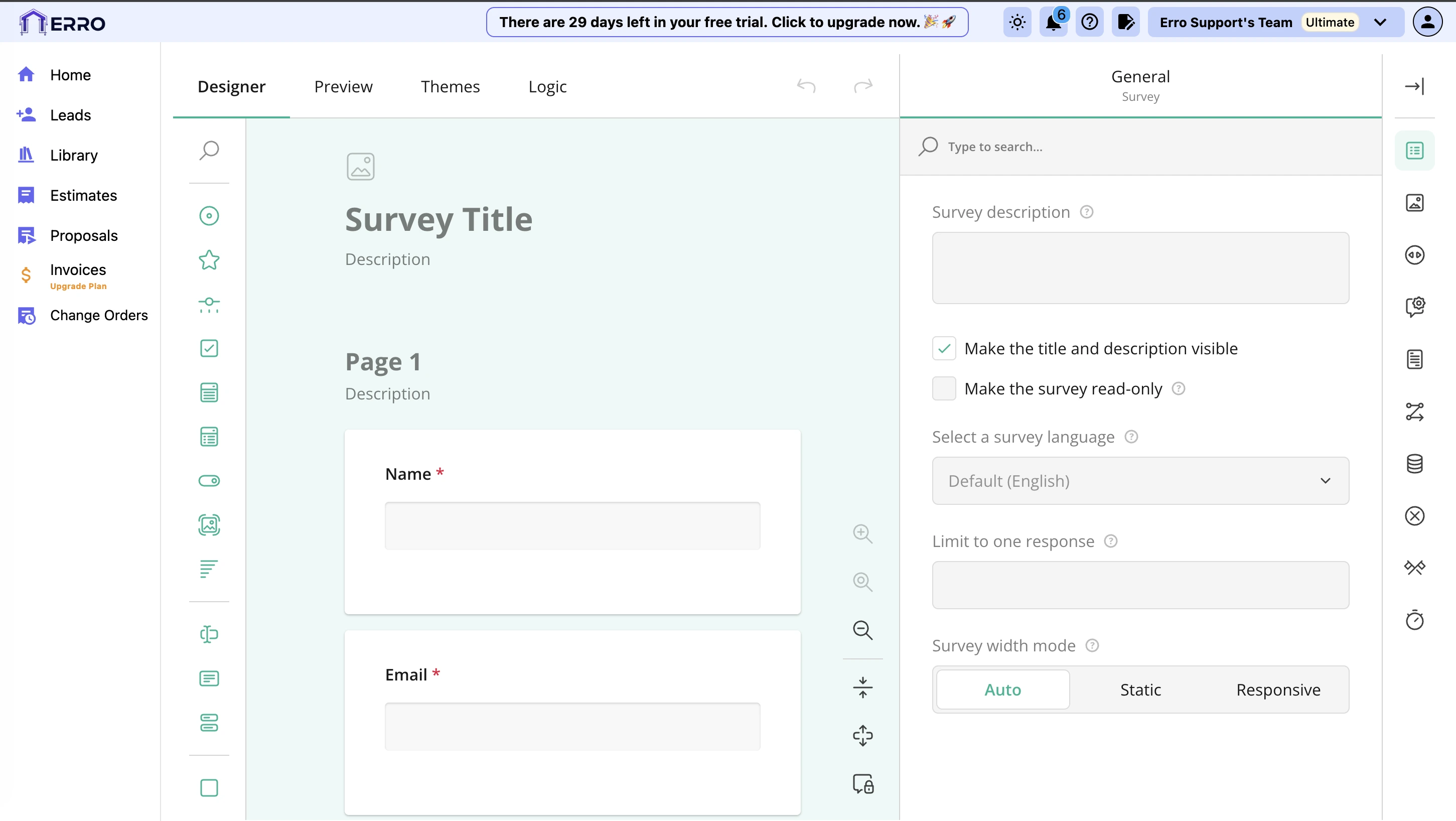
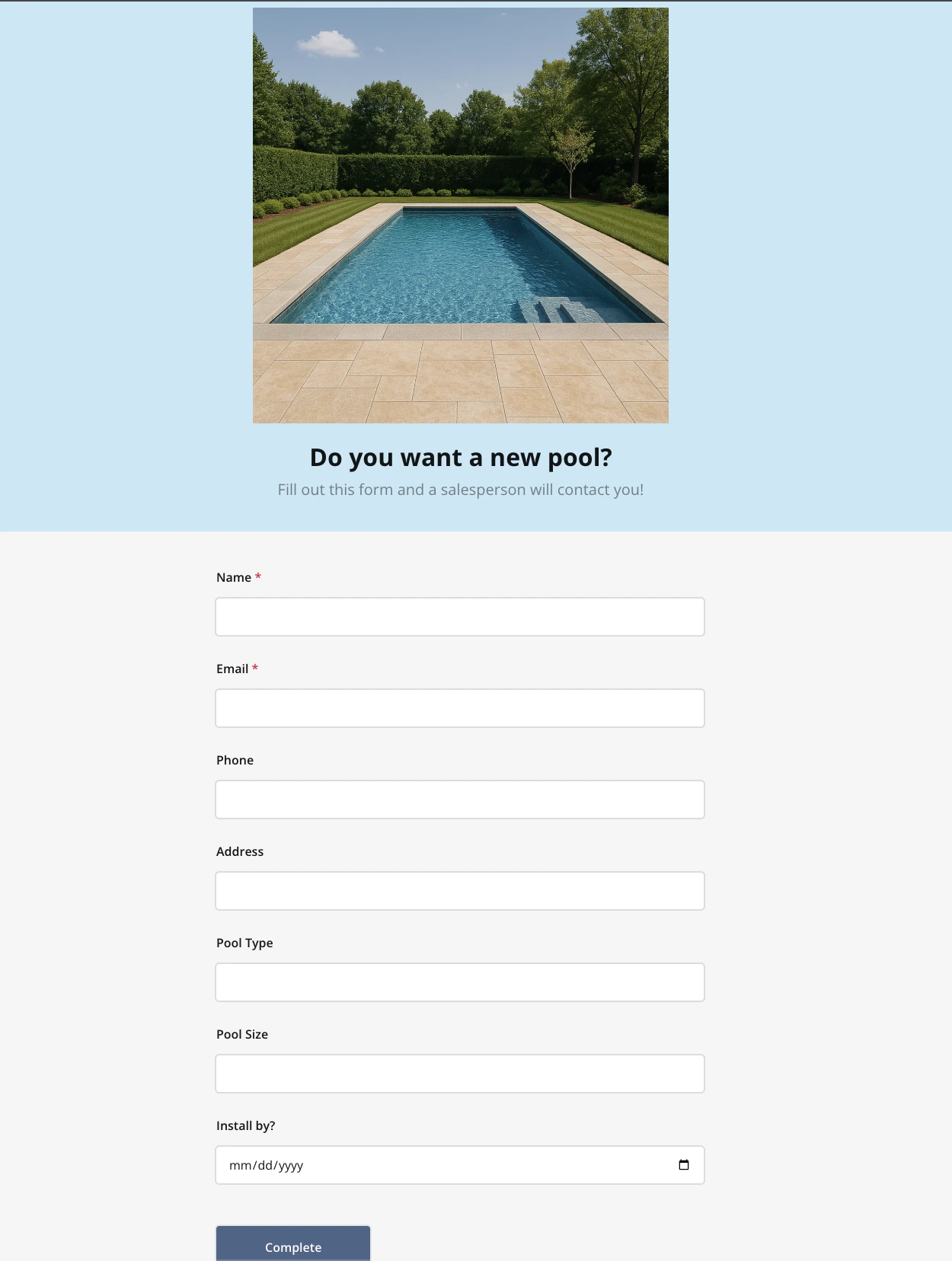
In the lead form editor, you can add new fields, remove existing ones, or rearrange them by dragging and dropping. You can also customize colors, themes, photos, and layout to match your branding.
3. Save Lead Form
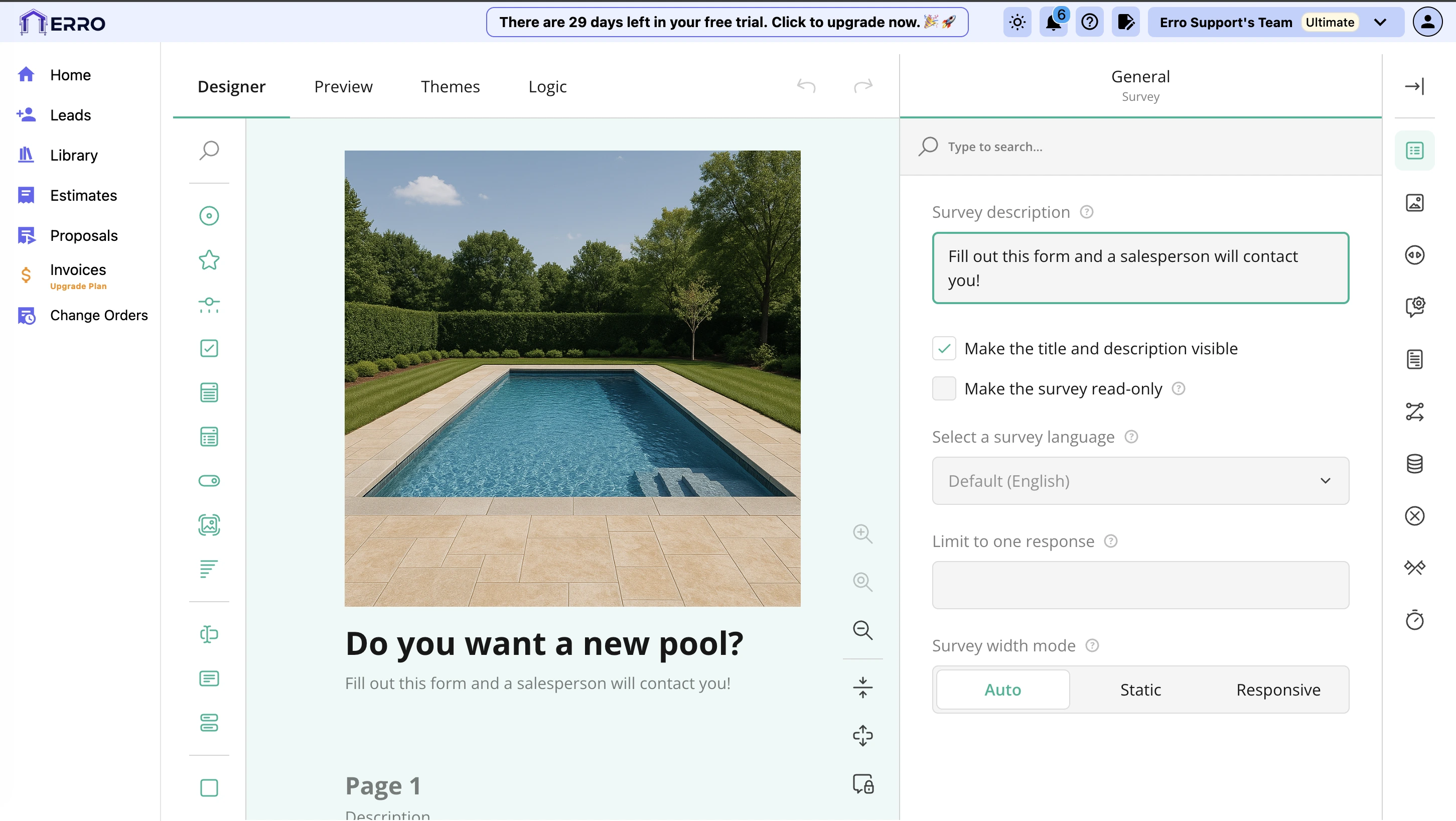
The lead form saves automatically as you make changes. Once you're satisfied with your edits, simply exit the editor to apply the changes to your lead form.
4. Copy Lead Form Link
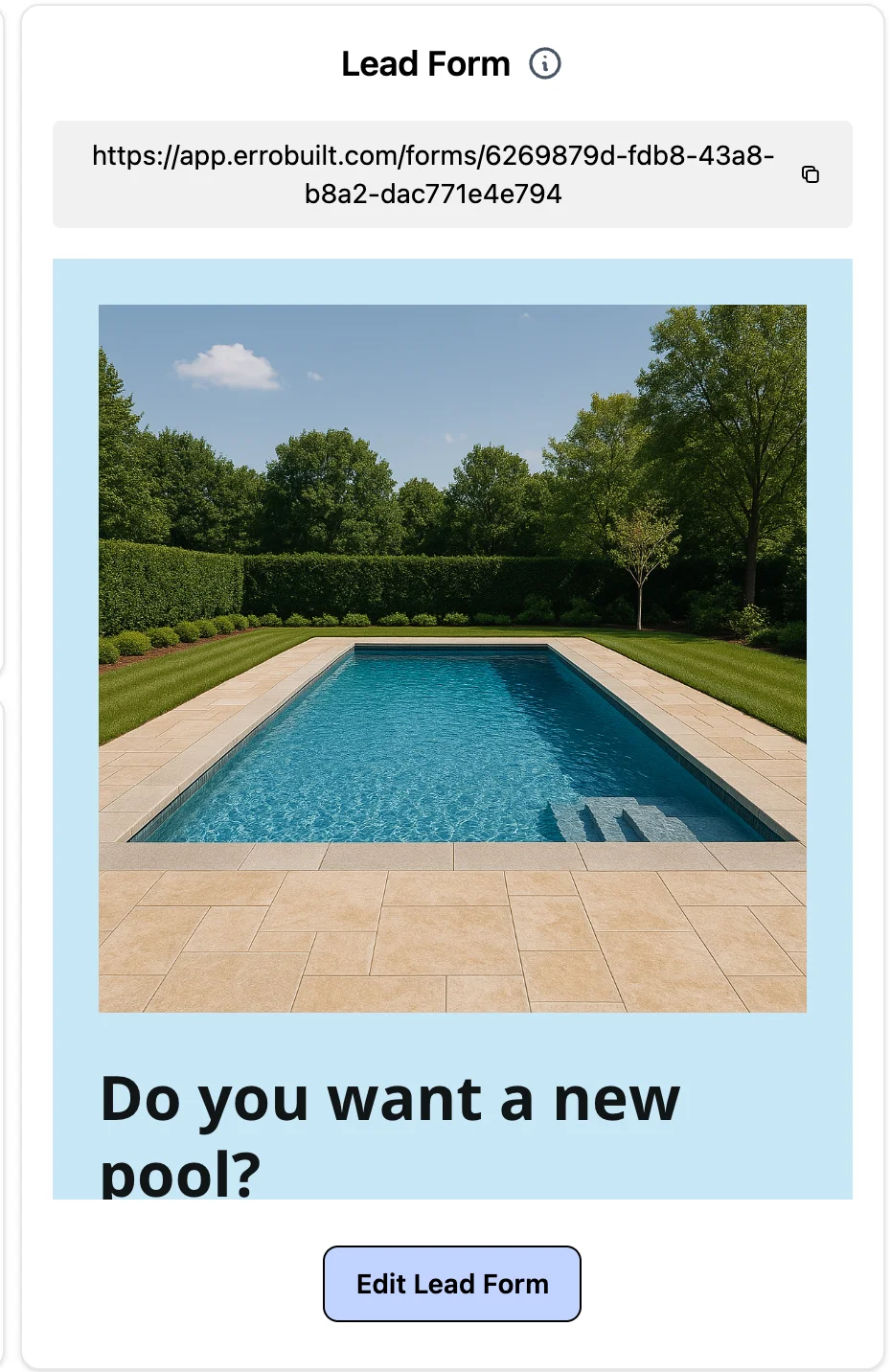
To share your customized lead form, copy the form link provided on the leads page and distribute it to your potential clients or embed it in your website.
5. View Lead Form Link
View the lead form by going to the URL.
Other Leads Articles
Explore more articles to help you get the most out of Erro.
Add a Tag or Stage to a Lead
Learn how to add a tag or stage to a lead.

Erro Support
Create an Email Template
Learn how to create an email template.
Erro Support
Create an Email Campaign
Learn how to create an email campaign.
Erro Support
Embed Your Lead Form
Learn how to embed your lead form on your website.
Erro Support